Bits & Bytes

Posts Tagged ‘actionscript’

Type Conversions of Primitive Types in Actionscript

We can perform explicit type conversions by using constructor notation like this:

var dFloat:Number = 3.14159;
var iConv:int = int(dFloat);

Here, we have the conversion of a floating-point (Number) type to an integer (int) type. A conversion from a Number to an int truncates the decimal so that the converted value “qConv” holds the value 3 after these lines are executed. In general, this is how the Number type gets converted to an int or a uint type: the value is simply truncated at the decimal point.

The Number type holds a much wider range than either the uint or int type can hold. When a Number type variable’s value lies outside the range of an int or a uint and a conversion takes place, a truncation occurs and the value is wrapped until it lies in the range of the target type.

var dFloat:Number = -3.14159;
var uiConv:uint = uint(dFloat);

In the example above, the negative value of “dFloat” lies outside the range of the uint type. So, the result of this conversion is 4294967293, which is the same value you would get if you converted an int with the value of -3 to the unsigned (uint) type.

var bBool:Boolean = true;
var uiConv:uint = uint(bBool);

We can convert numbers to booleans and vice versa. A Boolean variable with the value true gets converted to 1 and the value false gets converted to 0. This is the case regardless of whether the number type we are converting to is a uint, int or Number. So, the code segment above results in “uiConv” taking on the value 1 after the conversion.

var iNeg:int = -1;
var bConv:Boolean = Boolean(iNeg);

When converting to a Boolean type from a numerical type, the value 0 converts to false, as does the value NaN for Number type variables. All other numerical values convert to true. So, for example, the code above converts the value -1 to true.

Converting numerical types to a String is pretty straight-forward. The value is converted to a string representation of the number. Likewise, Boolean values are converted to the strings “true” or “false,” as expected.

var sString:String = "a3.14";
var dConv:Number = Number(sString);

However, converting values from a String type is somewhat strange. A String converts to a Boolean value of false if the String is null or empty (“”). Otherwise, it converts to true. A String converts to a number if it can be converted. If a String contains non-numeric characters it converts to 0 for int and uint types, but converts to NaN for a Number type. The code above converts the string “a3.14” to NaN.

How to Import an Image to the Library and Display it in Actionscript 3.0

In this post, I demonstrate how to import an image to the library and display it in Actionscript 3.0. Displaying an image that imported to the stage is automatic, but displaying an image that is imported to the library requires creating a class for the image. This is an important step toward using images in programs.

1. Open Flash and create an Actionscript 3.0 project by left-clicking “Flash File (Actionscript 3)” under “Create New” at the start up screen.

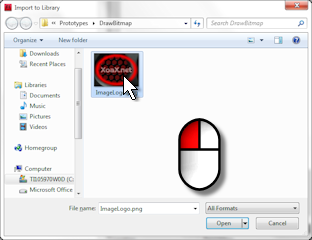
2. Next, we want to import an image to the library. To do this, Left-click “File” in the menubar, mouse over “Import” and left-click “Import To Library” in the submenu.

3. Select an image and left-click the “Open” button to import the image.

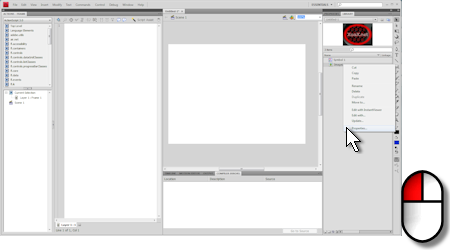
4. Right-click the image in the “Library” pane and left-click “Properties…” to open the “Bitmap Properties” dialog.

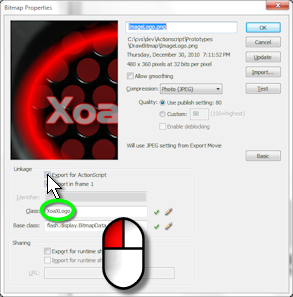
5. Click the box “Export for Actionscript” and we will change the “Class:” to “XoaXLogo” in this case, but you can use whatever name is appropriate. Finally, left-click the “OK” button.

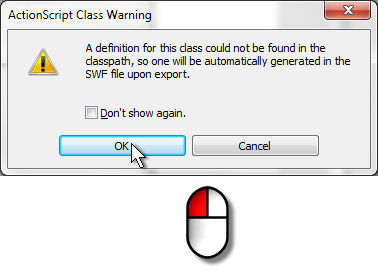
6. Now you will see this warning dialog. Left-click the “OK” button in the dialog to create the new class.

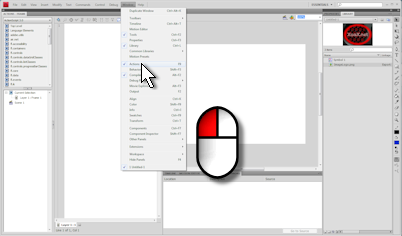
7. Make sure that the “Actions” pane open by left-clicking “Window” in the menubar and left-clicking “Actions” in the submenu if it is not checked.

addChild(new Bitmap(new XoaXLogo(480, 360)));

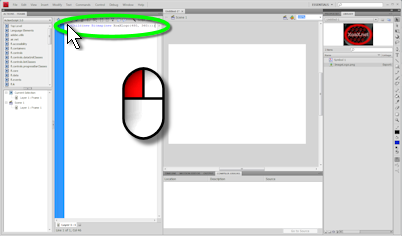
8. Add the line of code above to the “Actions” Pane. Here, the “Actions” pane is shown docked in the left of the window.

9. Then left-click “Control” and “Test Movie” in the submenu to run the program and you should see you image displayed, just as we showed at the top of this post.

10. The line of code that we added creates an instance of our image class ”XoaXLogo’ with the same size as our original image and stores that in a Bitmap class instance, which we add to the stage via a call to addChild(). Displayable objects that are added to the stage are automatically displayed.

11. At this point, the project is not saved. To save it, select “File” and “Save As…” in the submenu. Then find a location, enter the a filename into the “File name:” box, like “DrawBitmap.fla” and left-click the “Save” button to save the .fla file.

Declaring Variables and Constants in Actionscript with Fundamental Types

The basic format for declaring variables in actionscript looks like this:

var <variable name>:<variable type>;

We begin with var to indicate that we are declaring a variable. Then, we put a space, the variable name, a colon, the variable type, and, finally, a semi-colon to end the line. So, for example, we could declare a variable named MyNum of the type Number like this:

var dMyNum:Number;

A Number is used for floating-point or decimal numbers. We can initialize our variables in the declaration like this:

var dMyNum:Number = 3.14159;

Additionally, we can declare constants, which should be initialized, like this:

const kdMyNum:Number = 3.14159;

Actionscript has few a fundamental types to hold common data elements. These types are String, Boolean, Number, int, and uint. Strings are used to hold text. Booleans are used to hold the logical values “true” or “false”. Numbers are used to hold any number, including non-integer numbers. ints are used to hold integers only. uints are used to hold unsigned integers only. An example declaration and initialization of each of these types is shown here:

var sMyString:String = "XoaX.net";
var bMyBool:Boolean = true;
var dMyNum:Number = 3.14159;
var iMyInt:int = -67;
var uiMyUint:uint = 34;

Our first variable declaration did not contain an initial value. Variables that are declared with no initial value assigned to them take the following default values, according to their type:

String: null
Boolean: false
Number: NaN or not a number
int: 0
uint: 0


© 2007–2026 XoaX.net LLC. All rights reserved.