
 RSS
RSS Atom
Atom Feedburner
In this post, I demonstrate how to import an image to the library and display it in Actionscript 3.0. Displaying an image that imported to the stage is automatic, but displaying an image that is imported to the library requires creating a class for the image. This is an important step toward using images in programs.
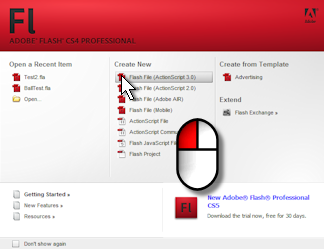
1. Open Flash and create an Actionscript 3.0 project by left-clicking “Flash File (Actionscript 3)” under “Create New” at the start up screen.

2. Next, we want to import an image to the library. To do this, Left-click “File” in the menubar, mouse over “Import” and left-click “Import To Library” in the submenu.
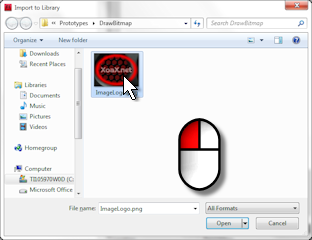
3. Select an image and left-click the “Open” button to import the image.
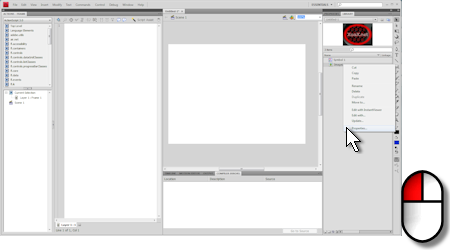
4. Right-click the image in the “Library” pane and left-click “Properties…” to open the “Bitmap Properties” dialog.
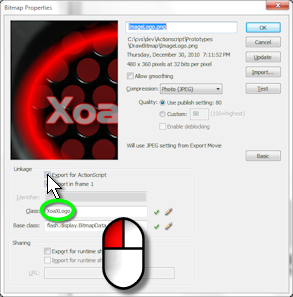
5. Click the box “Export for Actionscript” and we will change the “Class:” to “XoaXLogo” in this case, but you can use whatever name is appropriate. Finally, left-click the “OK” button.
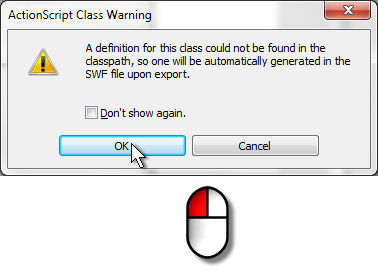
6. Now you will see this warning dialog. Left-click the “OK” button in the dialog to create the new class.
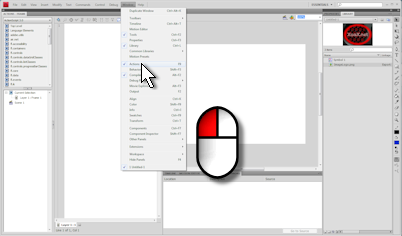
7. Make sure that the “Actions” pane open by left-clicking “Window” in the menubar and left-clicking “Actions” in the submenu if it is not checked.
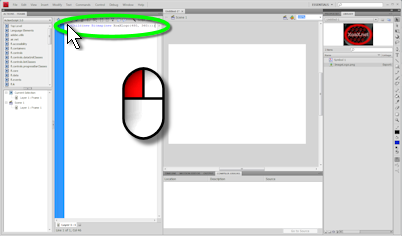
addChild(new Bitmap(new XoaXLogo(480, 360)));
8. Add the line of code above to the “Actions” Pane. Here, the “Actions” pane is shown docked in the left of the window.

9. Then left-click “Control” and “Test Movie” in the submenu to run the program and you should see you image displayed, just as we showed at the top of this post.
10. The line of code that we added creates an instance of our image class ”XoaXLogo’ with the same size as our original image and stores that in a Bitmap class instance, which we add to the stage via a call to addChild(). Displayable objects that are added to the stage are automatically displayed.
11. At this point, the project is not saved. To save it, select “File” and “Save As…” in the submenu. Then find a location, enter the a filename into the “File name:” box, like “DrawBitmap.fla” and left-click the “Save” button to save the .fla file.